Fedora Silverblue’s immutable filesystem offers incredible stability, but it changes how you install and configure software.
Setting up KVM virtualization is not as straightforward as it is on a traditional Fedora Workstation installation; it requires a few extra steps regarding group permissions and sandboxing.
In this post, I will walk you through the process I used to get KVM running smoothly and how to fix the common “gotchas” encountered on Silverblue.
Prerequisites
Before installing anything, verify that your CPU supports hardware virtualization:
grep -E 'vmx|svm' /proc/cpuinfo
vmx indicates Intel VT-x support, svm indicates AMD-V.
If you see output containing either flag, you are ready to proceed. If the command returns nothing, you may need to enable virtualization in your system’s BIOS/UEFI settings.
Next, check whether the KVM kernel modules are already loaded:
lsmod | grep kvm
You should see either kvm_intel or kvm_amd in the output.
Installing Core Virtualization Packages
On Silverblue, packages are installed as layers on top of the immutable OS using rpm-ostree:
rpm-ostree install qemu-kvm libvirt-daemon-kvm libvirt-daemon-config-network virt-install
Because these are layered system packages, a reboot is required for the changes to take effect:
systemctl reboot
After rebooting, enable the libvirtd service and add your user to the libvirt group:
sudo systemctl enable --now libvirtd
sudo usermod -aG libvirt $(whoami)
Installing virt-manager and virt-viewer
You have two options for the management GUI: Flatpak or rpm-ostree layering. On Silverblue, the Flatpak approach is generally preferred because it avoids adding unnecessary packages to the base OS layer.
flatpak install flathub org.virt_manager.virt-manager org.virt_manager.virt-viewer
Once installed, open virt-manager and add a connection:
- File -> Add Connection
- Hypervisor: QEMU/KVM
- Check Autoconnect
Troubleshooting
virt-manager keeps asking for the root password
If virt-manager prompts for the root password when connecting to qemu:///system, your user was probably not successfully added in the libvirt group. Verify your current groups with:
groups $USER
On Silverblue, this is a known quirk: system groups are stored in the read-only /usr/lib/group, while usermod attempts to modify /etc/group. If the libvirt group definition does not yet exist in /etc/group, the usermod command silently fails.
The fix is to copy the libvirt group entry from /usr/lib/group to /etc/group, then re-run usermod:
grep -E '^libvirt:' /usr/lib/group | sudo tee -a /etc/group
sudo usermod -aG libvirt $USER
You must log out and back in for the group changes to take effect. Now virt-manager should connect without prompting for a password.
Permission denied on ISO files
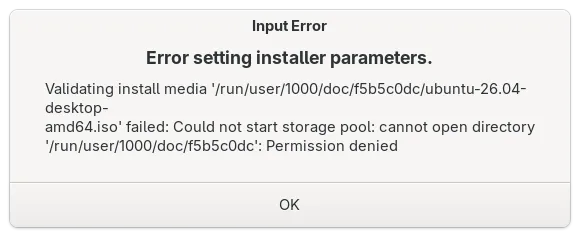
If you get permission errors when attaching an ISO to a virtual machine, it is because the libvirt user doesn’t have access to your home directory. The simplest fix is to move the ISO into the default libvirt images directory:
sudo mv /path/to/iso /var/lib/libvirt/images/
USB device passthrough does not work with Flatpak
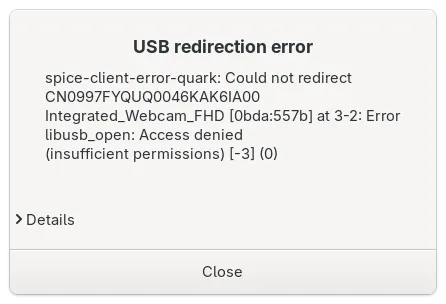
Because Flatpak applications are sandboxed, they cannot access USB hardware directly. If you need USB passthrough (for example, to use a webcam), you should install virt-viewer via rpm-ostree instead:
flatpak uninstall org.virt_manager.virt-viewer
rpm-ostree install virt-viewer
In my setup, I kept virt-manager as a Flatpak to keep the OS clean, and layered virt-viewer via rpm-ostree to enable full hardware access.