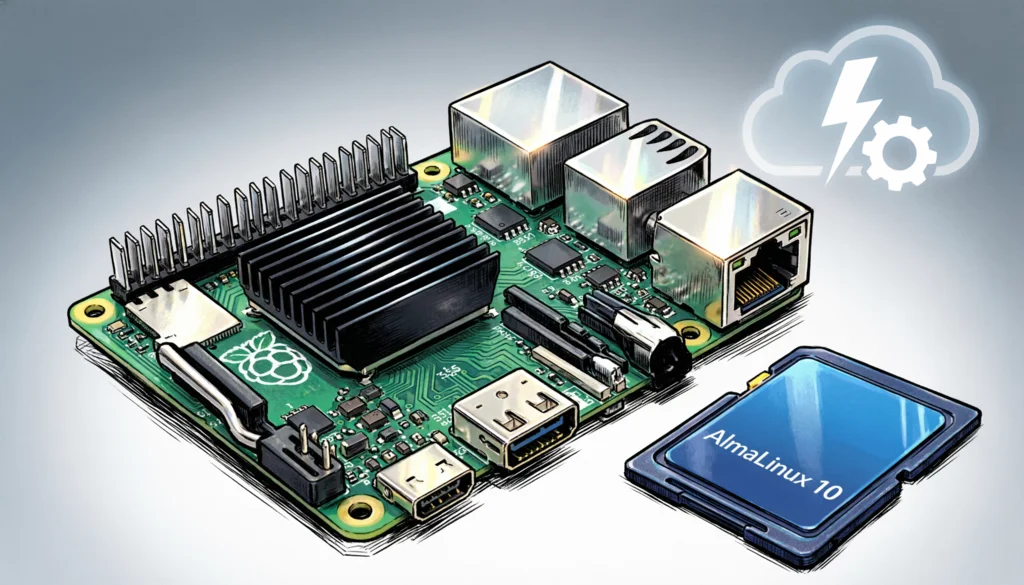
This guide provides a step-by-step procedure on how to provision AlmaLinux 10 on a Raspberry Pi 4 using cloud-init.
AlmaLinux
AlmaLinux is an open source, community-driven, production-ready operating system fully compatible with RHEL.
Why choose AlmaLinux? Free RHEL compatibility, 10-year support, fast security patches. ready to run enterprise software and CERN’s default OS for mission-critical workloads.
Raspberry Pi
The most famous tiny computer (about the size of a credit card), affordable for many uses like coding, homelabs, DIY projects, home automation and IoT devices.
cloud-init
Cloud-init is the industry standard tool that automatically configures a Linux system when it boots for the first time, using simple YAML instructions you provide. It automates the setup of users, SSH keys, networking, packages, and scripts, eliminating manual configuration. It saves time and ensures consistency, especially when deploying multiple servers or virtual machines, whether in the cloud or on-premises.
Overview of the process
- Download AlmaLinux
- Burn AlmaLinux on the SD card
- Configuration with cloud-init
- Boot the SD card
1. Download AlmaLinux
Download the AlmaLinux 10 image for Raspberry Pi from the official repository. There are two types of images available: GNOME desktop environment or server. I plan to install a k3s agent on this host, so I’m downloading the smaller image (without GNOME in the filename).
$ wget https://repo.almalinux.org/almalinux/10/raspberrypi/images/AlmaLinux-10-RaspberryPi-latest.aarch64.raw.xz
Saving 'AlmaLinux-10-RaspberryPi-latest.aarch64.raw.xz'
Saving 'AlmaLinux-10-RaspberryPi-latest.aarch64.raw.xz'
HTTP response 200  [https://repo.almalinux.org/almalinux/10/raspberrypi/images/AlmaLinux-10-RaspberryPi-latest.aarch64.raw.xz]
AlmaLinux-10-Raspber 100% [==============================================================================>]  584.47M    6.35MB/s
                          [Files: 1  Bytes: 584.47M [6.28MB/s] Redirects: 0  Todo: 0  Errors: 0           ]
Verify the image
Download and import the AlmaLinux OS PGP public key.
$ curl -O -s https://repo.almalinux.org/almalinux/RPM-GPG-KEY-AlmaLinux-10
$ gpg --import RPM-GPG-KEY-AlmaLinux-10
gpg: key DEE5C11CC2A1E572: public key "AlmaLinux OS 10 <packager@almalinux.org>" imported
gpg: Total number processed: 1
gpg:               imported: 1
Download and verify the checksum.
$ curl -O -s https://repo.almalinux.org/almalinux/10/raspberrypi/images/CHECKSUM
$ curl -O -s https://repo.almalinux.org/almalinux/10/raspberrypi/images/CHECKSUM.asc
$ gpg --verify CHECKSUM.asc CHECKSUM
gpg: Signature made Mon 01 Dec 2025 23:01:59 CET
gpg:                using RSA key EE6DB7B98F5BF5EDD9DA0DE5DEE5C11CC2A1E572
gpg: Good signature from "AlmaLinux OS 10 <packager@almalinux.org>" [unknown]
gpg: WARNING: This key is not certified with a trusted signature!
gpg:          There is no indication that the signature belongs to the owner.
Primary key fingerprint: EE6D B7B9 8F5B F5ED D9DA  0DE5 DEE5 C11C C2A1 E572
Verify the checksum of the downloaded image.
$ sha256sum -c CHECKSUM 2>&1 | grep OK
AlmaLinux-10-RaspberryPi-latest.aarch64.raw.xz: OK
2. Burn AlmaLinux on the SD card
You can use a GUI like Raspberry Pi Imager or Fedora Media Writer to burn the image.
Alternatively, you can use the dd command in the terminal. Start by identifying your SD card with lsblk or dmesg.
It will typically be something like /dev/sdX or /dev/mmcblkX. Double-check the SD card device (/dev/sdX) before running dd, as the target device will be completely wiped.
Warning: Writing to the wrong device can cause data loss, or destroy your OS.
Then use the following commands to decompress the xz file and burn it to the SD card (this will take a few minutes). Finally, run sync to ensure all data is flushed to the SD card.
$ xzcat AlmaLinux-10-RaspberryPi-latest.aarch64.raw.xz | sudo dd of=/dev/sdX bs=4M status=progress conv=fsync
[sudo] password for marco:
1243283456 bytes (1.2 GB, 1.2 GiB) copied, 1 s, 1.2 GB/s3040870400 bytes (3.0 GB, 2.8 GiB) copied, 1.85929 s, 1.6 GB/s

0+86165 records in
0+86165 records out
3040870400 bytes (3.0 GB, 2.8 GiB) copied, 155.584 s, 19.5 MB/s
$ sync
You will end up with a similar result (this example uses a 64GB SD card).
$ lsblk
...
sdb                                             8:16   1  59.5G  0 disk
├─sdb1                                          8:17   1   477M  0 part  /run/media/marco/CIDATA
└─sdb2                                          8:18   1   2.2G  0 part
...
3. Configuration with cloud-init
Examine the CIDATA volume. Edit the user-data file to set up what cloud-init will customize at the first boot. Keep in mind that cloud-init initializes the host during the first boot, so any modifications to user-data must be made before booting the Raspberry Pi.
You can configure many aspects of the system, such as the hostname, SSH password authentication, adding your public SSH key, setting a password, configuring the network, installing packages, and performing a system update on the first boot.
As an example, here is the default file. This configuration allows only console logins using the default user almalinux. To connect via SSH using almalinux, you need to insert your SSH public key, since ssh_pwauth is false (password authentication is disabled for SSH logins).
hostname: almalinux.local
ssh_pwauth: false

users:
  - name: almalinux
    groups: [ adm, systemd-journal ]
    sudo: [ "ALL=(ALL) NOPASSWD:ALL" ]
    lock_passwd: false
    passwd: $6$EJCqLU5JAiiP5iSS$wRmPHYdotZEXa8OjfcSsJ/f1pAYTk0/OFHV1CGvcszwmk6YwwlZ/Lwg8nqjRT0SSKJIMh/3VuW5ZBz2DqYZ4c1
    # Uncomment below to add your SSH public keys as YAML array
    #ssh_authorized_keys:
      #- ssh-ed25519 AAAAC3Nz...
I do not want to use the default user, thus here is how I’m configuring this file
hostname: k3s-agent-001.scavazzon.com
ssh_pwauth: false
package_upgrade: true

users:
  - name: marco
    groups: [ adm, systemd-journal ]
    sudo: [ "ALL=(ALL) NOPASSWD:ALL" ]
    lock_passwd: false
    passwd: $6$EAU4th.NU1QQxSs4$eFbDlWPeMMtkZEktNhn1najhf1mkC7v7OHCV0VlTIstjBIrR2mdIC3zTKawldafKPA7KK1wyPZdGgUsREaNEZ0
    ssh_authorized_keys:
      - ssh-ed25519 AAAAC3NzaC1lZDI1NTE7AAAAIN2HtDLsCn+6qCE4Vrptfdf49IFZXTrm6kY/NzvmAKuX marco_2025@scavazzon.com
Use mkpasswd -m sha-512 to generate the hashed password. Set package_upgrade: true to make sure the host is patched during the first boot.
To set up the network, create a file named network-config in the same directory of user-data. In this example, I’m configuring the wired network end0 of my Raspberry Pi 4 with a static IPv4 address.
version: 2

ethernets:
  end0:
    dhcp4: false
    optional: true
    addresses:
      - 192.168.1.111/24
    gateway4: 192.168.1.1
    nameservers:
      addresses:
        - 192.168.1.1
Cloud-init supports many other options. Refer to their documentation for a complete list. I prefer to keep the cloud-init configuration minimal and then manage the host with Ansible.
4. Boot the SD card
Finally, unmount the SD card, insert it into the Raspberry Pi, and boot the system. During the first boot, the host will be configured as specified in the cloud-init files: the partition will be enlarged to use the whole SD card space, system updates will be performed, and the host will be reachable via SSH with the user specified.
The system is now ready to be managed using your favourite configuration management system (I use Ansible).